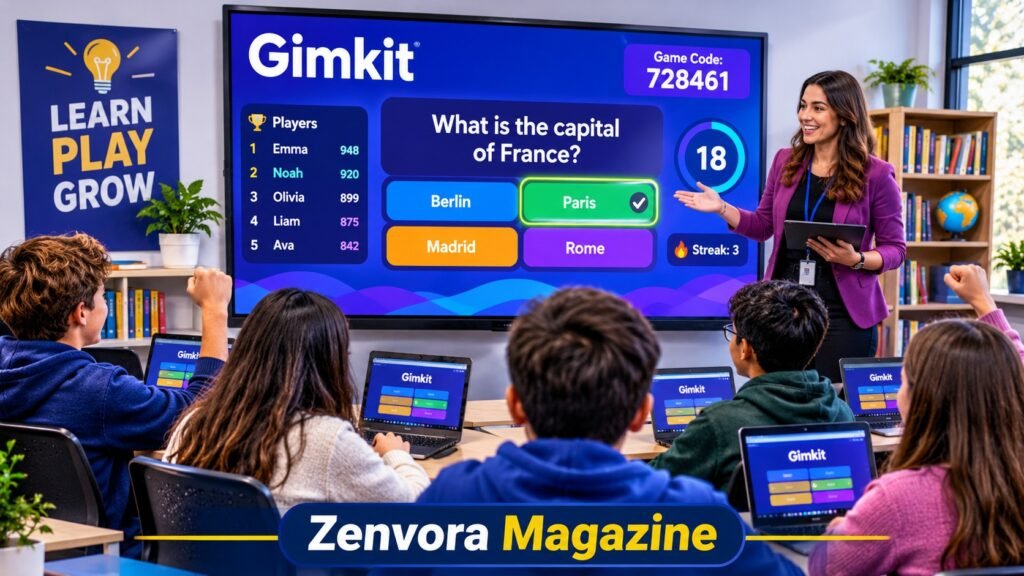
Gimkit Host
Gimkit Host is the feature that allows teachers and game organizers to create and manage live educational games. With Gimkit, you can select a question set (called a Kit), choose a game mode, customize settings, and invite students using a unique game code. Students can join from their own devices and compete while learning.
Whether you are hosting your first classroom quiz or organizing a fun revision session, Gimkit makes the process straightforward. Here is how to host a Gimkit game, share the joining code, and manage players.
What Is Gimkit Host?
Gimkit Host refers to the hosting process that lets someone start and control a live Gimkit game. It is mainly designed for teachers who want to make classroom learning more interactive.
The host controls important parts of the session, including game modes, player access, game settings, and when the game starts or ends.
Gimkit uses question sets called Kits. These Kits contain questions and answers that students use during gameplay. Instead of simply answering a traditional quiz, players can enjoy different game experiences while reviewing educational topics.
How to Host a Gimkit Game
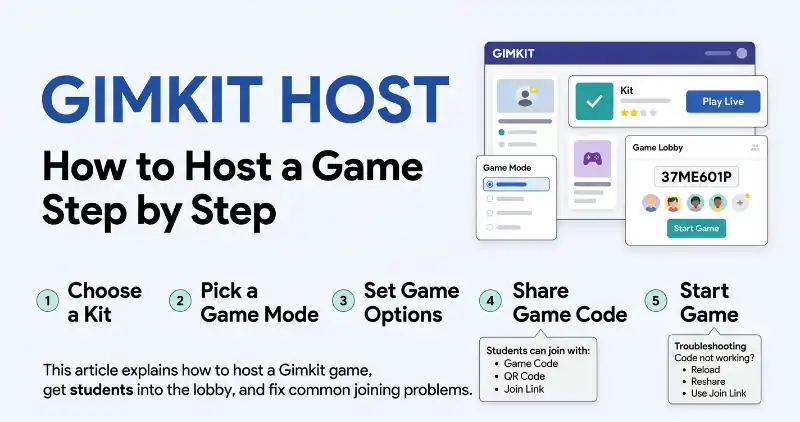
Hosting a Gimkit game takes only a few steps. Follow this process to get started.
Step 1: Open Gimkit and Sign In
Visit the official Gimkit website and sign in to your account. If you are new, create an account before attempting to host a live game.
Once logged in, you will reach your dashboard, where your available Kits are displayed.
Step 2: Select a Kit
Choose the question set you want to use for your game.
You can select an existing Kit from your dashboard or create a new one based on your classroom subject. Make sure the questions and answers are correct before starting.
Step 3: Choose a Game Mode
Click the Play Live option next to your selected Kit. Gimkit will open its game mode selection screen.
Choose a mode that matches your students’ interests and learning objectives. Different modes offer different gameplay experiences, so check the available options before continuing.
Step 4: Customize Game Settings
After selecting a mode, you can adjust the available game settings.
Depending on the selected mode, these may include:
- Nickname Generator for student names.
- Class connections.
- Game goals and time limits.
- Options for allowing late players.
- Other mode-specific settings.
Review everything before continuing to the lobby.
Step 5: Share Your Gimkit Host Code
Once the game is created, Gimkit opens a lobby containing a unique game code.
Share this code with your students so they can enter the game. Players can also use a QR code or a direct joining link.
Students without connected Classes can visit Gimkit’s joining page and enter the code to participate.
Step 6: Start the Game
Wait until your students have joined the lobby. Check the player names and remove inappropriate names if necessary.
When everyone is ready, click Start Game. Your live Gimkit session will begin, and students can start answering questions.
How to Join a Gimkit Game as a Student
Students do not need to host a game when their teacher has already created one.
Joining is simple:
- Ask your teacher for the Gimkit game code.
- Open the Gimkit joining page.
- Enter the game code.
- Type your name or approve your assigned nickname.
- Join the lobby and wait for the teacher to start.
Once the host starts the game, you can participate using your device.
Best Tips for Hosting a Successful Gimkit Game
A little preparation can make your classroom gaming experience much better.
Choose relevant questions: Use questions related to the lesson students are currently studying.
Select the right game mode: Pick a mode that matches the age group and learning objectives of your class.
Check the lobby: Review player names before starting to prevent inappropriate nicknames.
Explain the rules: Give students a quick explanation of the game before starting.
Monitor the session: Use the available host controls to manage players and check the leaderboard.
These simple steps can help make a Gimkit session more organized and enjoyable.
Common Gimkit Host Problems and Solutions
Sometimes teachers experience problems while hosting a live game. Here are a few common issues and possible solutions.
Gimkit Game Code Is Not Working
Check whether you are sharing the correct code. Make sure the game is still active because a previous session’s code may no longer work.
Students Cannot Join the Game
Check the internet connection and confirm that students are using the correct joining page. Also, review the late-joining settings if the game has already started.
Gimkit Game Is Not Loading
Refresh the page, check your internet connection, and try opening Gimkit in an updated browser. School network restrictions can also interfere with gameplay.
Frequently Asked Questions
Is Gimkit Host free?
Gimkit offers a free Basic plan that allows users to host live games with access to available features and game modes. Some additional features require a paid plan.
Do students need a Gimkit account to join?
Students generally do not need an account to join a live game. They can enter using the game code provided by the host.
Can I host a Gimkit game from my laptop?
Yes. You can host Gimkit through a compatible web browser on a laptop or desktop computer.
Can students join after a Gimkit game starts?
This depends on the game settings. If the host enables the late-joining option for a supported mode, additional students may be able to enter after the game begins.
What is the difference between Gimkit Host and Gimkit Join?
Gimkit Host is for the person creating and managing a live game. Gimkit Join is for students or players entering an existing game with a code.
Final Thoughts
Gimkit Host makes it easier for teachers to turn ordinary classroom questions into interactive learning experiences. By selecting a Kit, choosing a game mode, adjusting settings, and sharing a joining code, you can organize a live game in just a few steps.
Whether you are teaching a new topic or reviewing previous lessons, Gimkit offers an engaging way to encourage student participation.
read more: Gimkit: What Is It, How Does It Work, and Is It Free?